Scientific Illustrations
From Maths to Graphics on Mac OS X
|
Starting point
Adobe Illustrator (this page is mostly about CS 3 because that's the last version I bought) is a vector graphics program that comes in handy when you want to create or edit Postsccript/EPS or PDF figures, e.g., for a scientific presentation or publication. I'm not making any statements about how or if this software is better than others - it's discussed here because I've been running it since version 6 and therefore have gotten used to it. Scroll down to the end for alternative (free) graphics programs. In particular, I would strongly recommend looking into Inkscape as a free alternative, and a simple, browser-based relative of it, SVG-Edit (see the discusssion below).
Scenarios in which you may need a program like this are:
- Touching up images and plots produced by your favorite numerical code (including Mathematica etc.) for publication: adding labels, legends, arrows etc.
- Creating diagrams or graphics elements from scratch, e.g. for use with Keynote, Apple's presentation software. Keynote itself does not have sufficient graphics editing capabilities for most people's taste, but it is straighforward to copy material directly from Illustrator into Keynote. I use this even for simple things like arrows etc.
For a quick, to-the-point introduction to Illustrator, check out this link; it assumes a much older version of Illustrator, but this has the advantage that there isn't too much extra baggage dealing with advanced features introduced in later versions. Sometimes it's good to go back to basics.
Issues and solutions
This page has grown quite long. The reason is that I am addressing issues related to a proprietary application (Illustrator) whose inner workings are not open to inspection. So what happens is that the user stumbles upon an issue and has to make some educated guesses as to what's wrong. Since I can't change the software that's causing the trouble, all I can do is to classify the various combinations of circumstances under which the issues arises, and address solutions one by one.
Here is a list of issues with Adobe Illustrator on Mac OS X for which fixes or workarounds are known. I'll then give the quick fixes for these problems, followed by some more technical fixes that lead to more flexibility in manipulating the graphics object:
-
LaTeX fonts are not displayed correctly (replaced by a "default font" which usually has no correspondence to the intended expression). Below is an example of a page from a LaTeX font survey, read into Adobe Illustrator without any additional processing:
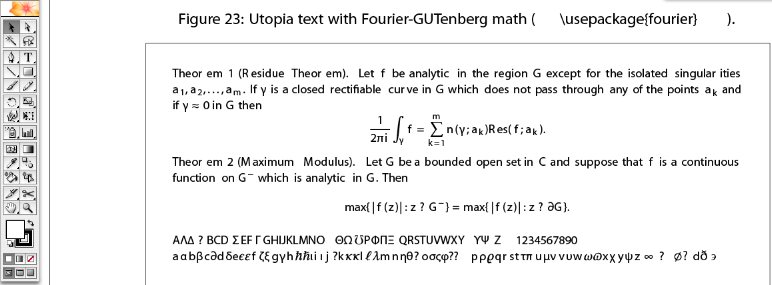
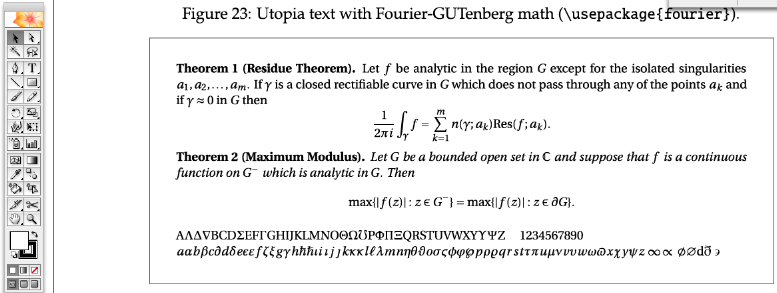
The text is supposed to be a serif font, and the lines at the bottom are supposed to reproduce the greek alphabet. Obviously, this is not what you see. To see how this output was supposed to look, refer to the fixed version below.
The quick fixes:
- Place a file
LaTeX and Mathematica font problems can be circumvented by using
Place...from Illustrator'sFilemenu to bring EPS or PDF files into a document. The difference to theOpenaction is that a placed file is not editable within Illustrator. Click this link to see what this looks like (for a multi-page PDF document, you get to choose which page to place). The big advantage is that Illustrator now does not have to try and make all the fonts in that figure available via theTypetool, and there will thus be no font substitutions. This only avoids the problem but doesn't solve it. It's useful only if you intend to embed your final Illustrator output as PDF or EPS into a LaTeX file, because if the original placed file is itself created with LaTeX then its fonts should cause no problems when fed back into a LaTeX in the form of an included graphic.
- Strip away the fonts
A more useful and very reliable procedure is to strip off all embedded fonts from the document before opening in Illustrator. This requires an additional step which I'll describe here for a LaTeX document; the analogous procedure is described for Mathematica on a separate page (that's where I initially discovered this trick; then I adapted it in response to a question on the Mac OS X TeX mailing list).
Assume you have generated a file
Myfile.pdfusingpdflatex(orlatexfollowed bydvipdf), then run the commandin the Terminal. The result is a filegs -sDEVICE=pswrite -dNOCACHE -sOutputFile=nofont-Myfile.ps -q -dbatch -dNOPAUSE Myfile.pdf -c quit
nofont-Myfile.pswhich you can then open in Illustrator. Text will be converted into vector outlines; this has the consequence that in contrast to the first solution ("placing" an file), the complete contents of the document are editable like any other graphics object. You can change the color and other attributes of individual symbols, scale formulas and do all the beautiful free-hand manipulations that Illustrator is so good at.Since February 2006, this method is also part of LaTeXiT, a small front-end for LaTeX typesetting. If you enter a formula in LaTeXit, the PDF output can by copied onto the clipboard in the form of a converted PDF with the fonts stripped off, by choosing "Copy as outlined PDF" from the
Editmenu.
I have created a small application called FontBegone that performs the above operation and then converts the file back to
PDFformat. The difference to LaTeXiT is that you can use my program on any PDF file, even multi-page documents downloaded from the net. This can be useful not only in conjunction with Illustrator, but also for sending the file to printers that have problems with your fonts.-
The program is activated by dropping a
PDF,EPSorPSfile onto the icon. The output file has the same base name as the input file, but with the ending-nofont.pdf. Alternatively, in the latest version, you can also activate the program without dragging anything onto it; in that case,FontBegonelooks forPDFcontent on thepasteboardand replaces that by the outlined version. -
Download the application on this separate page.
To illustrate how this method works, return to the example given earlier, and compare with the fixed version, processed withFontBegone:
-
The program is activated by dropping a
The "Home Improvement" solutions:
Using Place... in Illustrator, you can still annotate or mask parts of the placed image, but you cannot, e.g., directly change the color of a line in the plot, or make the labels bigger. Also, when sending a document to someone without the necessary fonts installed, a placed file might again cause trouble. Instead, if Illustrator has converted text into vector graphics outlines, these are independent of specific font installations, and you have the "surgical" freedom to edit attributes such as color, size, transparency etc. Therefore, if you're content to have all your text in the form of graphics outlines, then the quick fix no. 2 above should be the best solution.
If, on the other hand, your goal is to maintain as much as possible of the textual information in the form of character fonts, then there's more work to do; before going on with these home improvement suggestions, note that fonts you installed for Illustrator may not show up properly on somebody else's computer.
To avoid even the remotest possibility of this, export (or save as...) the final EPS or PDF version of your graphic only after converting all text to outlines with the menu item Type > Create Outlines. Keep a "master" copy with the same name but extension .ai, in which text has not been converted to outlines so that you can make textual changes on it and re-export if needed.
LaTeX fonts are not displayed correctly
First, how do you get LaTeX into Illustrator in editable form? You need a
LaTeX typesetting program, and some options for this are
discussed on a
separate page about scientific presentations. Let's
assume you use TexShop.
Illustrator could receive data in PDF in two ways:
- In the TeXShop PDF viewer, select a rectangle containing the data to transfer.
To get this rectangle into
Illustrator, one has to take a little detour: choose
Copyfrom the teTeX menu and open Preview. PressingApple-Ncreates a new window with the copied part of the LaTeX document. Save this as a PDF file from Preview, and drag the result onto the Illustrator icon. This will open a new Illustrator window with the desired part of your LaTeX output. - Alternatively, you could use LaTeX Equation Editor, Equation Service or LaTeXiT to type a formula and drag it into Illustrator. This involves no manually created intermediate files on the disk.
The problem in both cases is that Illustrator will substitute all Computer Modern fonts (used by LaTeX) with its own defaults which generally creates a mess. In LaTeX, you can choose to use different fonts that are not the original Computer Modern, but this by itself only helps if these fonts happen to be available to Illustrator somehow.
To fix this, we need to provide additional fonts to Mac OS X. Here are three
solutions (they can also be combined). I'll summarize them first, then follows a detailed description.
- Feed Computer Modern Fonts to Illustrator (works with Illustrator CS - CS3)
- Switch to Mathtime/Belleek fonts (works with all Illustrator CS - CS3)
- Install the StiX fonts (works with Illustrator CS3)
-
If you must use Computer Modern fonts in your LaTeX source, then download the
TeX-Illustrator Fonts
and do one or both of the following: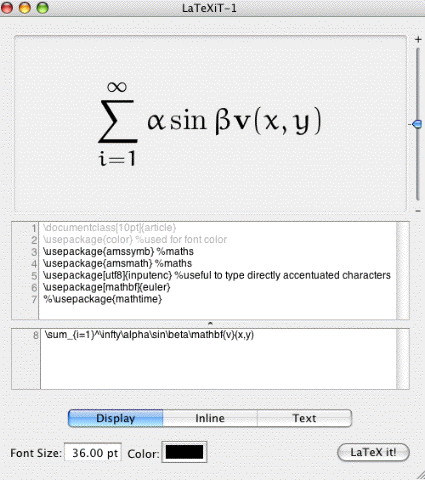
-
Drag the whole Folder into the Directory
/Library/Application Support/Adobe/Fonts/Reqrd/. After restaring Illustrator, the fonts should be available. You can of course also install these fonts system-wide using Font Book, but there is no advantage in that unless you plan to use TeX fonts outside of Illustrator. -
Since some of the more infrequent font sizes are missing among the TeX-Illustrator fonts, it may be necessary to add the following in the preamble of your LaTeX file:
\usepackage{type1cm}
This replaces missing fonts by rescaled versions of other existing fonts.
This is still not perfect: punctuation marks such as commas, periods and vertical bars | are not represented correctly in math equations. But this seems to be the best we can do with the available Computer Modern fonts.
Among the fonts installed by this set of files are the ones used by the
Eulerpackage. This is a somewhat more playful-looking font, but it actually works very well with Illustrator CS2/3 (not with CS!). If you want to try this font, add the line\usepackage[mathbf]{euler}to the preamble of your latex document. Both latex and pdflatex produce output that maintains its appearance in Illustrator CS2. The picture on the right shows an example of Euler font, composed using LaTeXit.
-
Drag the whole Folder into the Directory
-
Alternatively, you may want to avoid the Computer Modern Fonts altogether. This is what I
would suggest as the best solution (to my knowledge). You do this by including the
following in the Preamble of your LaTeX document (after any other packages that affect fonts):
\usepackage{mathtime}
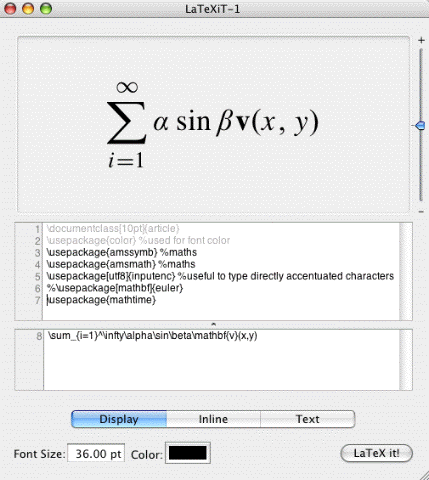
What this does is not at all obvious from the name of the package: in an up-to-date version of LaTeX, this command invokes thebelleekfonts which are free and part of any standard teTeX distribution. These fonts can be translated straightforwardly into a format that can be installed under Mac OS X. The picture on the right illustrates the appearance of these fonts for the same code as above.- Download the fonts here. I created these fonts with FontForge, and anyone can do the same because this is freeware, applied to free fonts. I have verified that they do not interfere with any of the applications I use; neither have I received any reports of any problems whatsoever. So this download, provided here only for your convenience, is safe to the best of my knowledge, but I take no responsibility for any problems you may encounter (just in case: any fonts you install in MaC OS X can also be removed again using FontBook).
-
There are three files in this archive. To make sure they are installed correctly, open the
Font Bookapplication, highlightAll Fontsto display the list of system fonts, and click the "+" underneath that list to add fonts. Then choose the three files in the belleek directory you downloaded. You should then have the followng new entries in the Fontbook listing:BLEX,BLSYandRBLMI. -
To use the new fonts, insert
\usepackage{mathtime}at the end of your LaTeX preamble. Instead of usingpdflatexas I usually do, uselatexfollowed bydvipdffor documents that are intended to be imported to Illustrator. - After restarting Adobe Illustrator, you should now be able to read any LaTeX formula, including punctuation, into Illustrator.
-
Here I'll list the problems that I'm aware of:
-
Avoid the
bmpackage: to get bold math, use\mathbf{}instead of\bm{}in your formulas. -
Using
latexfollowed bydvipdfmay work better thanpdflatex. If I usepdflatex file.tex, not all glyphs show up correctly in Illustrator. This is why I have set the default composition method inLaTeXiTtolatex+dvipdf. - When feeding the PDF formula (generated above as "file.pdf" or "newfile.pdf") into Illustrator, outlines may be created for some characters (in particular for integrals, sums, etc.). Also, to add text within Illustrator, you can't use the Belleek fonts themselves because glyphs for the regular alphabet are not present. This is not a real problem because once you're in Illustratotr there are of course numerous alternative fonts to choose from.
-
Avoid the
-
Here is a template LaTeX document that can be processed with
latex, followed bydvipdf:\documentclass{article} \usepackage{mathtime} \pagestyle{empty} \begin{document} Nobody would ever claim that \quad $ \vec\alpha_1(\xi,x)=\frac{\dot{\mathbf r}}{\vert \hbar\vert} \mbox{\quad for\,\,}\xi\neq 0 $ \end{document}I've tried much more complicated sources with many aditional styles (such as AMS packages), and the only problems I encountered are the ones listed above. -
When using PDFLaTeX, it is useful to start the LaTeX file with
\documentclass{minimal}, which makes the bounding box of the output fit the dimensions of your formula. If you don't use this class, (e.g. because you are following thelatex→dvipdfroute), the same effect can be achieved by adding the following step after thedvipdfstage:pdfcrop filename.pdf
This produces the outputfilename-crop.pdf.
Once you're done editing in Illustrator, converting all text to outline is probably advisable in any case to be on the safe side if you want to send an Illustrator file with LaTeX annotation to someone else. Select all artwork, then go to Illustrator's Type Menu to perform this conversion. This will insure that your figure will display text in the same style even on systems that don't have the above LaTeX fonts installed.
-
The Scientific and Technical Information Exchange (STIX) font creation project provides a free set of fonts that can be used across platforms and applications, specifically aimed at scientists who use TeX typesetting. You can use these fonts with
XeLaTeX. The reason why I don't say much aboutXeTeX/XeLaTeXhere is that it increases the risk that other users will not be able to read the resulting PDF if they are missing specicific fonts installed only on the author's system. With the STIX fonts now being freely available, one can imagine that they will one day be installed be default on most operating systems. This would significantly enhance the portability ofXeLaTeX-generated scientific papers.
For LaTeX documents with lots of styles and options loaded, it's quite likely that an arbitrarily selected PDF clipping will still encounter font substitution problems in Illustrator, but at least the steps described above should give good results if you trim down the LaTeX source code enough. After all, we are talking mainly about annotating illustrations here (and not about assimilating whole papers into Illustrator), and within that limited context you should be fine with what we have at this point. If not, go back to the quick fix.
Other graphics software
There are many other graphics programs. A good place to find out what's available and which technologies are being developed: the Wikipedia web site's lists of vector and bitmap graphics applications. Here are my favorite free graphics programs:
- Bitmap-oriented software
-
With these kinds of programs, you don't have to worry about fonts as long as you provide your plots in bitmap form (e.g., jpeg exported from Mathematica).
- GraphicConverter has been around as shareware since the days of the Classic Mac, and it's one of the best tools ever made. On some Macs, it came pre-installed and free. If you don't have it, it will cost a shareware fee unless you are willing to endure a lengthy countdown before the program starts.
-
Seashore is a lean but useable Mac OS X freeware application that allows you to draw simple images using layers and transparency. It can use all the installed fonts, and has some degree of compatibility with the Gimp (described below).
After a long hiatus, development of Seashore has picked up again in 2010, so I recommend taking a look at it, though I personally use Gimp instead of Seashore. If you are still using it, you may also want to have a look at a separate page where I explain how transparency works in Seashore.
- ImageMagick is like an X-window counterpart to GraphicConverter, but is actually a whole set of tools that I often use from the command line and in scripts. In particular, its
convertcommand line utility is invaluable. You can get ImageMagick for X11 from fink. See also my general installation instructions. Theconvertutility recognizes a huge number of graphics formats. One problem that I had temporarily was that convert lost its ability to crop images automatically (the command for this used to beconvert -crop 0x0). Here is a workaround for this. However, in the most recent version from fink, it seems to be no problem to crop images using the alternative commandconvert -triminstead. - The Gimp is an extremely powerful graphics manipulation package, comparable to Abobe's Photoshop. Calling this a tool would be an understatement. I started using Gimp on UNIX machines in 1997, initially because graphics editing on my little Mac sometimes exhausted the memory capacity. Gimp was ideal back then because it handles layers and transparency. It can do extremely intelligent things to your bitmap images. Its user interface is not Mac like, so it will take some getting-used to; a small price to pay, in my opinion. Especially since the latest Gimp versions are Mac OS X native application bundles.
- Sumo Paint is a new web application in Flash. Its user interface is similar to Photoshop, and more intuitive than Gimp's. It has some very advanced features based on the powerful graphics capabilities of Adobe Flash. You should have a fast computer and fast internet connection to use this browser-based program, but in general the usability is excellent for modest illustration or sketching purposes. The advantage is that you don't have to install anything (except the ubiquitous Flash Player) to get going.
- Vector-graphics software
-
Browser-based applications, online or offline
- Aviary "Raven" is a free, flash-based online vector editor. In terms of having a complete
Creative Suiteavailable online, this would be the best choice. Aviary offers several other online applications that can inter-operate with each other. This includes a node-based effects editor (reminiscent of Blender), a bitmap editor (see above) and even an audio editor. -
SVG-Edit is an SVG based editor that can be used off-line but runs in your browser. Its user interface is superficially like that of Inkscape, but it may be preferable to some people because its smaller feature set and platform independence makes it more manageable. The editor supports layers, can import bitmap images and can export as a
base64-encodedstring. However, the easiest way to import and export SVG images in this program is to click the SVG source view and copy the verbatim source code to and from an editor (such as emacs). This is possible because SVG is not a binary format but a human-readable XML format.To view an
SVGfile, you can always use a web browser (Safari/Firefox/Camino/Opera). But what if you want to includeSVGin another document such as a LaTeX-generatedPDF? With browser-based solutions such as SVG-Edit, there is no direct PDF export, but you can simplyPrint to PDF, or use the printPreviewbutton (Mac OS X) to open the file inPreview. Once in Preview.app, you can use theSelecttool to make a copy with the desired dimensions and process the vector graphics further (even additional annotations can be introduced with Prevoew's tools).
X11 Applications
The programs listed below run in the X-window environment, and can handle fonts to a certain extent. It's just a bit more work to make sure Mathematia and other fonts are also installed in the proper X11 font directory. The maturity of open-source graphics software is impressive. As mentioned above, you get all this through fink.-
 Inkscape is almost an Adobe Illustrator replacement. It's got pretty good support for text annotation, but I do have problems with missing fonts sometimes: eps images created in Illustrator can be imported, but only if one first converts all fonts to outline. The EPS import relies on the
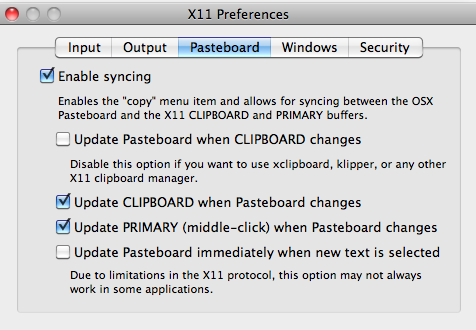
 pstoeditutility, and therefore will have its limitations, too. Beginning with version 0.45, Inkscape can import PDF files directly. There's a Mac OS X binary available at the project web site. Note that for Snow Leopard, I had to set the X11 preferences as shown in this screenshot on the right.If you don't uncheck the "Update Pasteboard when CLIPBOARD changes" box, Inkscape doesn't let you paste anything on its canvas.
Inkscape has some unique features. For example the ability to make tilings of the plane using any of the two-dimensional space groups. This is something one could get for the Classic Mac under the name Tesselmania!. Very instructive, not just for kids.
- Aviary "Raven" is a free, flash-based online vector editor. In terms of having a complete
noeckel@uoregon.edu Last modified: Thu Jun 21 20:13:01 PDT 2018